
darktable does the pixels
Every edit is a darktable module. Immage adds no processing of its own, so darktable opens an Immage edit and renders it the same.
darktable compatibility →
darktable, opinionated.
Alpha · 0.41.1 is outImmage is a raw photo editor with the panels, sliders and shortcuts you already know. Your photos stay in folders, your edits stay beside them, and darktable does the processing.
macOS · Windows · Linux, x86-64 and ARM64
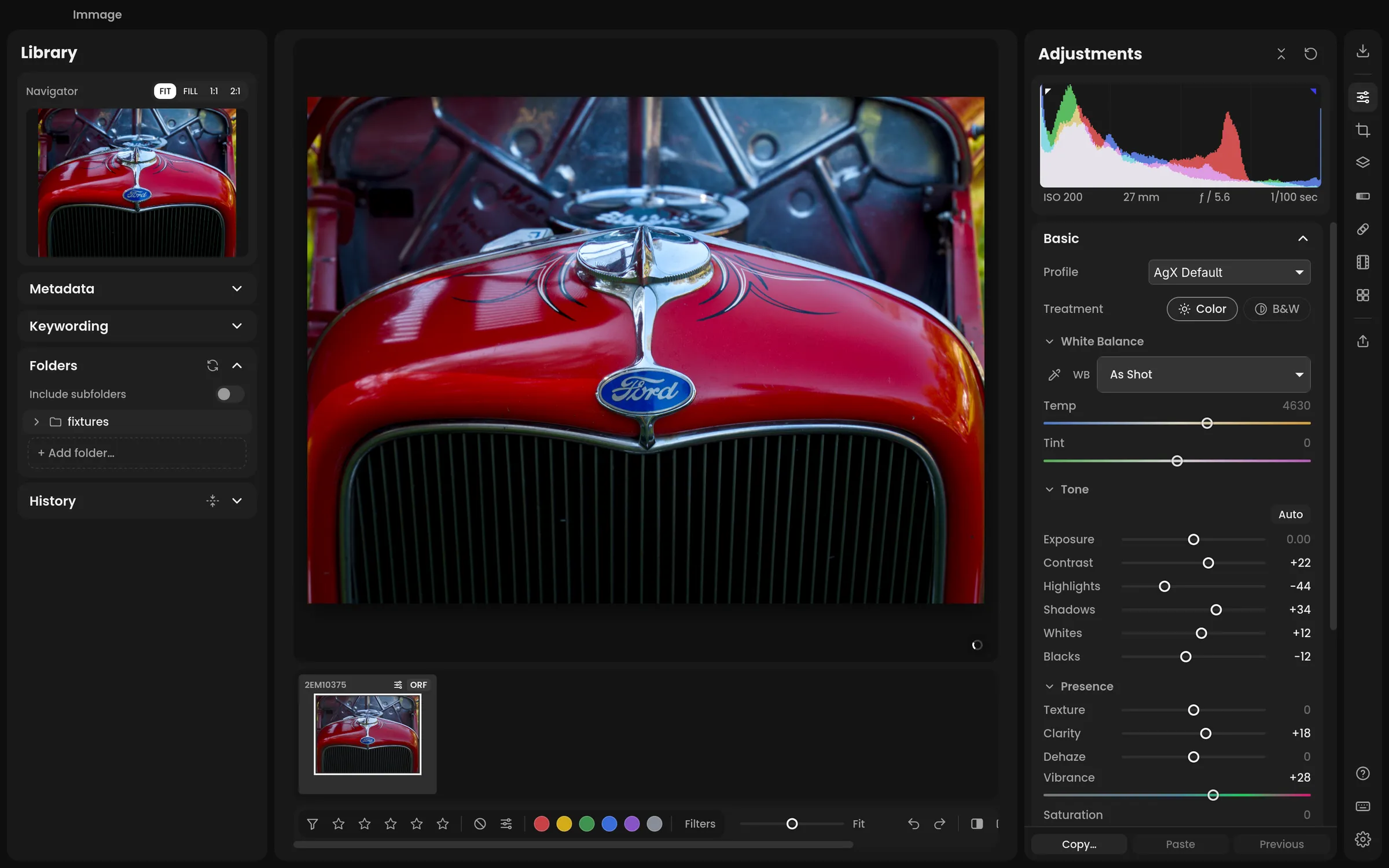
Every edit is a darktable module. Immage adds no processing of its own, so darktable opens an Immage edit and renders it the same.
darktable compatibility →Open folders directly. Edits, ratings and keywords are saved automatically in an XMP sidecar beside each photo. Originals are never changed.
The library →Optional: imports skip photos your Immich library already has, the Library panel searches it, and exports go straight into an album.
Connecting Immich →What you can do
Basic, Tone Curve, HSL / Color, B&W Mix, Color Grading, Detail, Lens Corrections, Transform and Effects, in their usual order with their usual slider names.
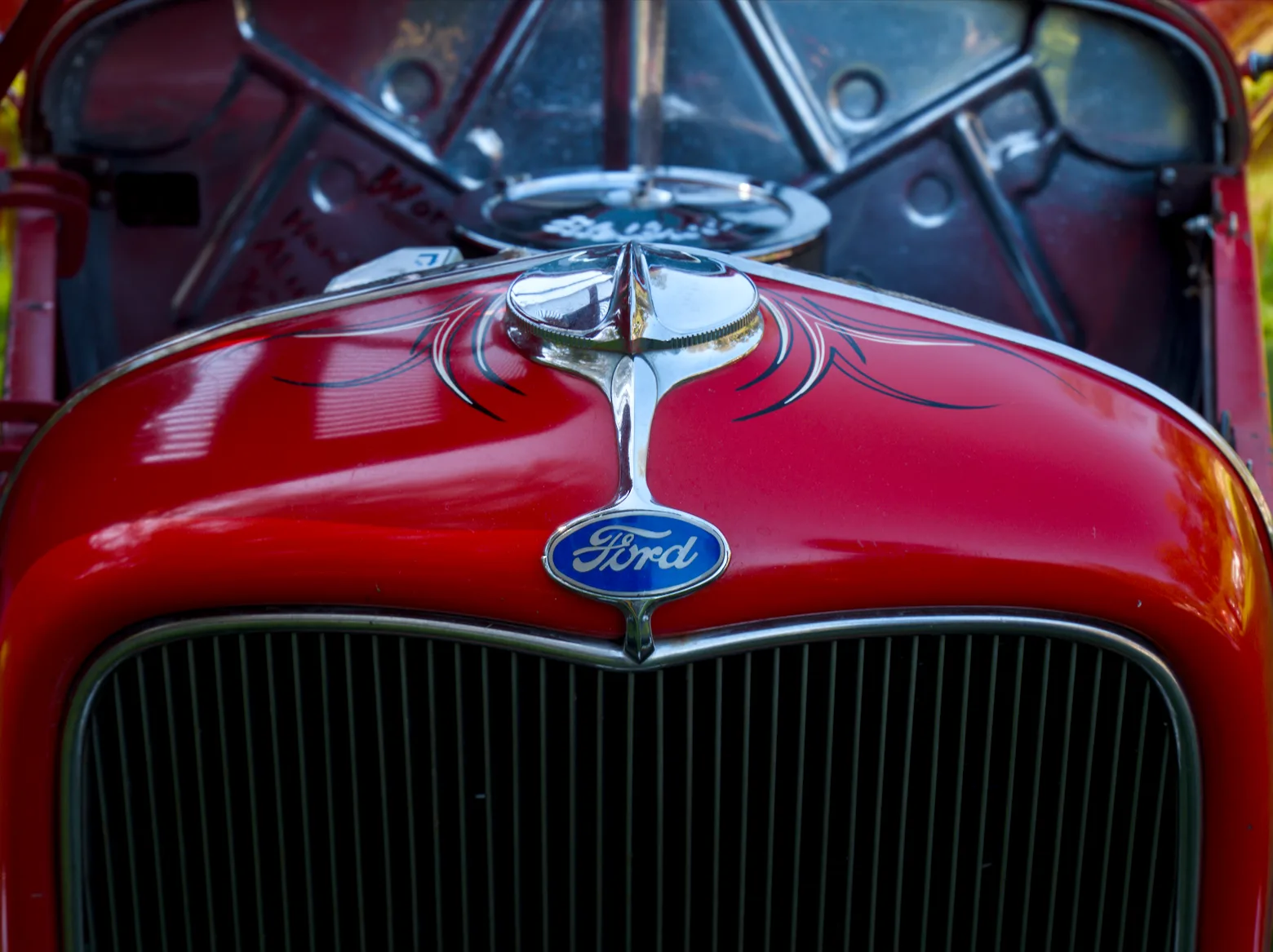
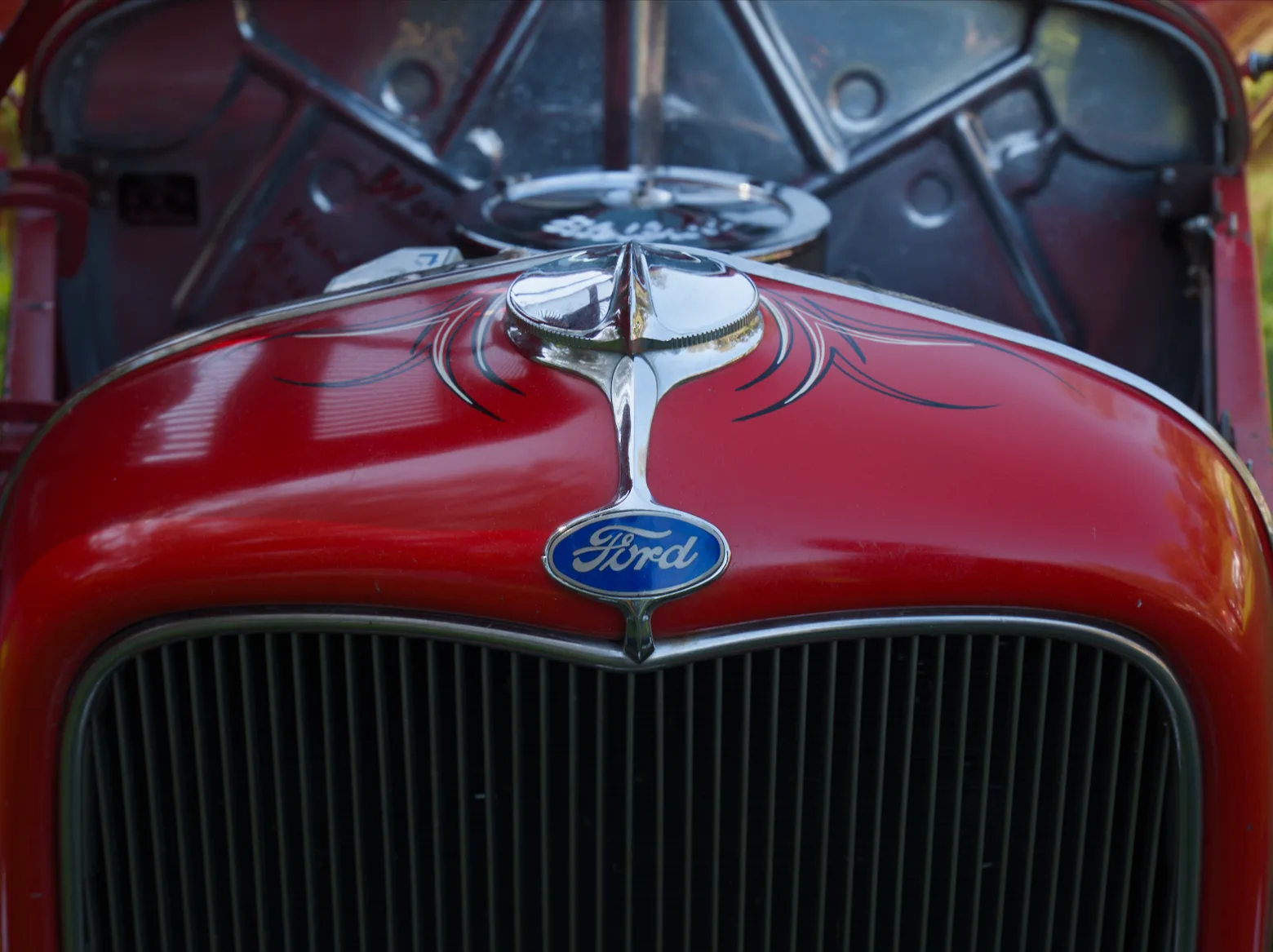
Shadows, Midtones, Highlights and Global, each with a hue, saturation and luminance. Drag a wheel, or switch to sliders.
Read more in the guide →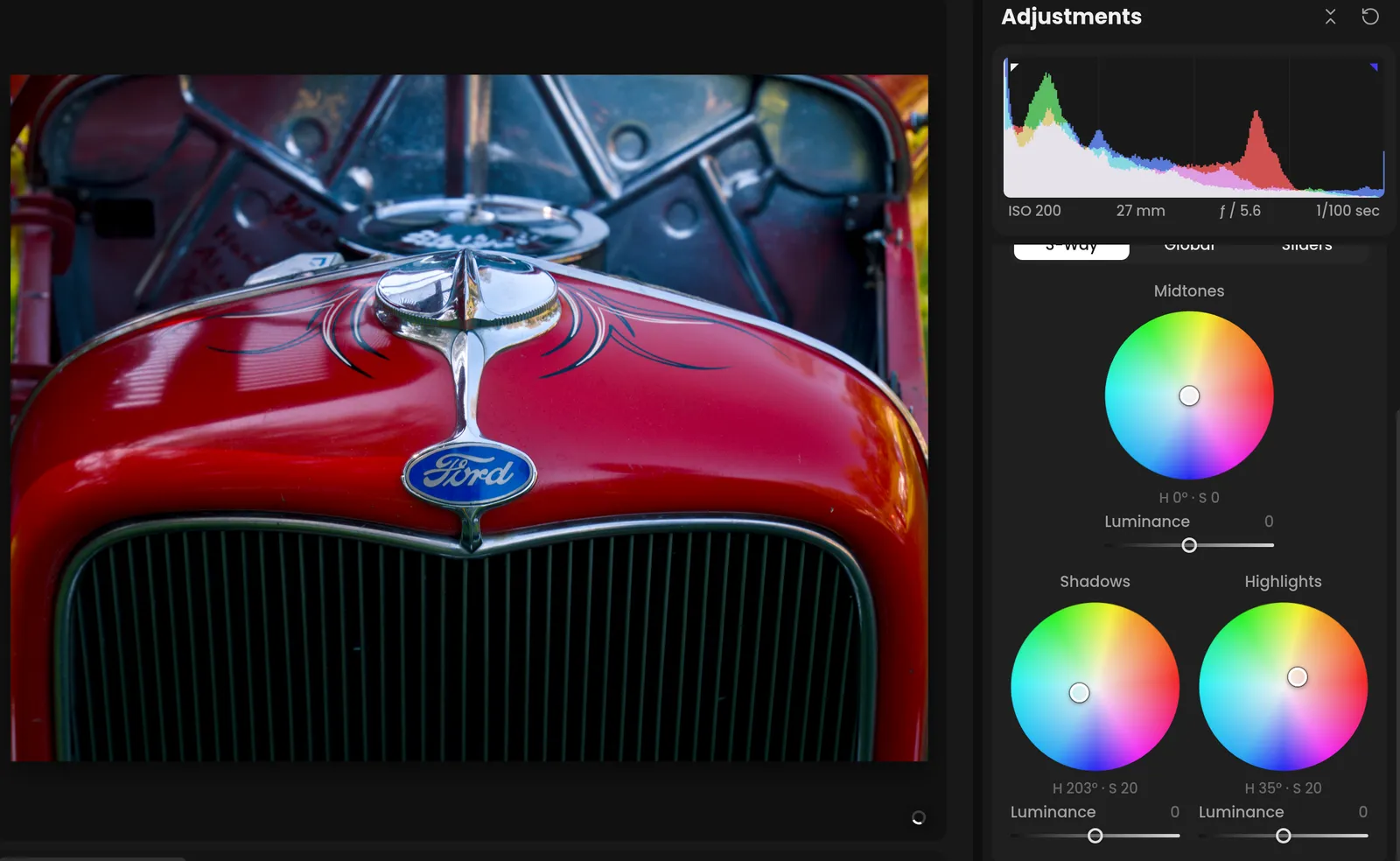
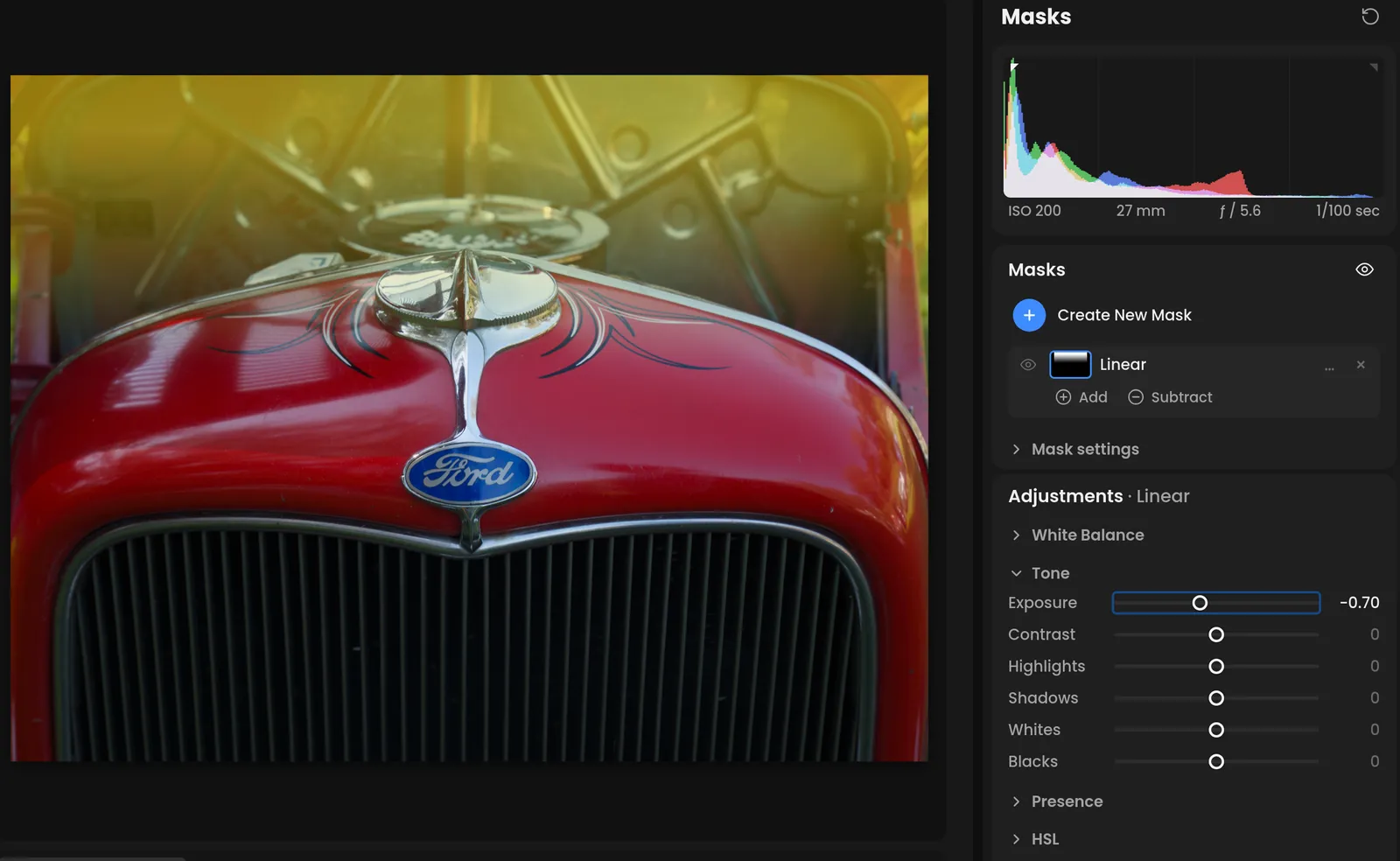
Brighten a face, darken the sky, warm the foreground. Each mask has its own sliders.
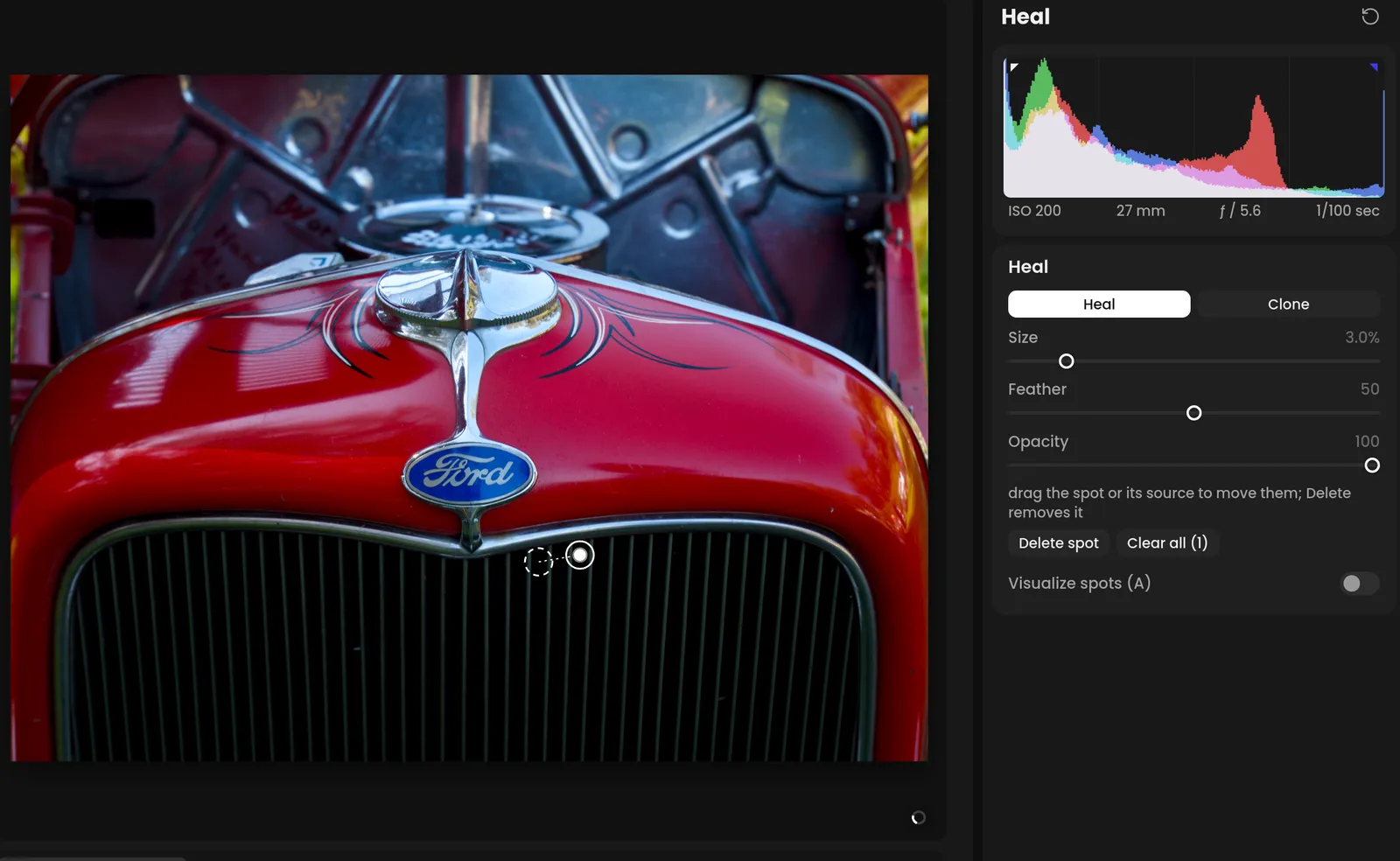
Remove dust spots, blemishes and distractions. Immage picks the source; you can move it.
Presets set sliders with an Amount; looks are film emulations with their own strength. Both preview live on your photo.
Read more in the guide →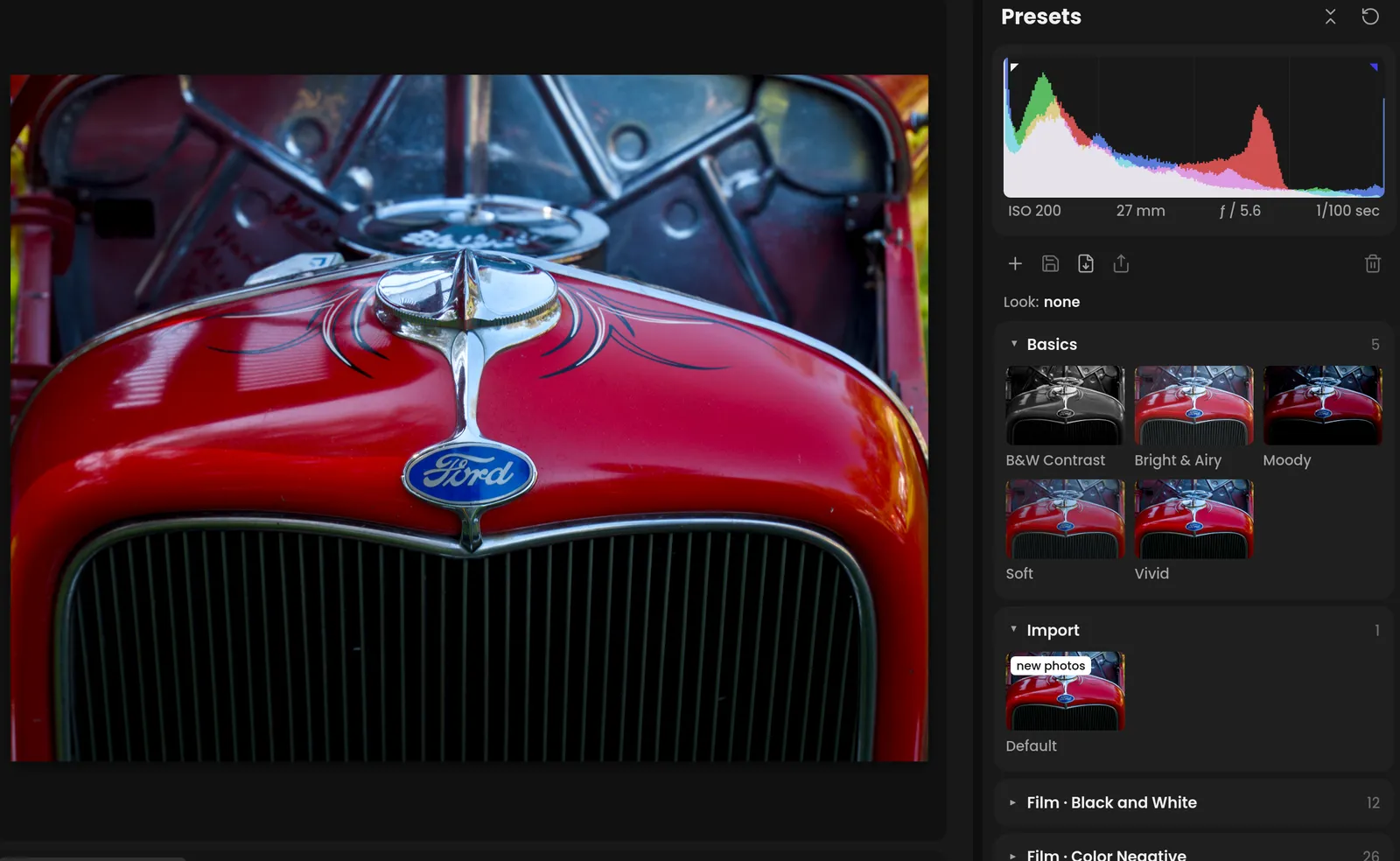
See a black and white photo's tones as zones 0 to X, place them where you want them, and fine-tune any band of tones.
Read more in the guide →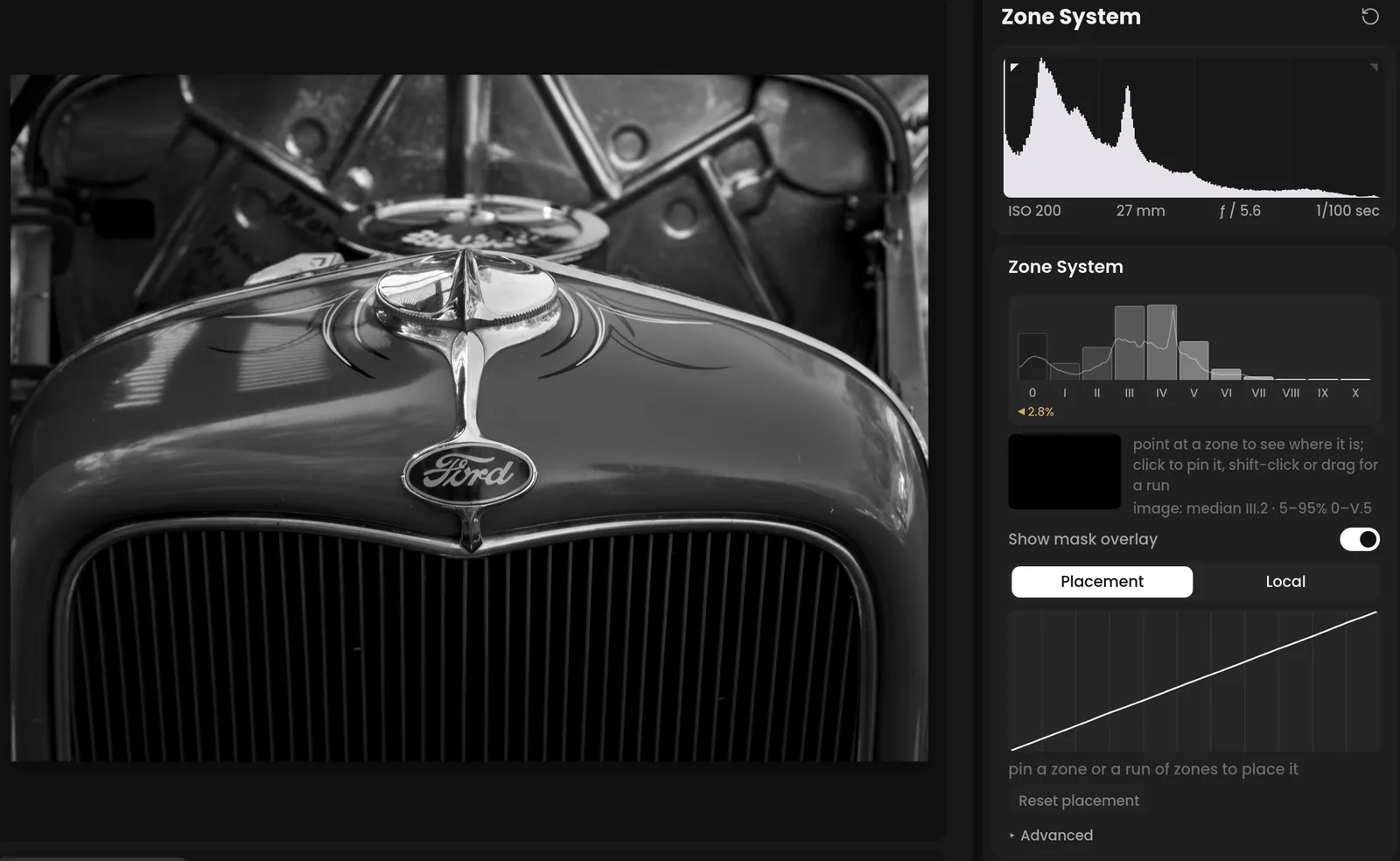
Turn a camera scan of a negative into a positive with darktable's negadoctor, color or black and white, and a whole roll from one frame.
Merge bracketed or overlapping raws into one new DNG you keep editing.
Denoise a raw into a new DNG, with a before and after preview, then edit it like any other photo.
To a folder or straight into an Immich album, with sizes, file-name templates, borders, captions and a watermark.
From card to album
Try Immage on copies first. It uses a development version of darktable, and stable releases may not read its newer module or mask formats. Need every module and full pipeline control? Keep editing in a compatible darktable.
Immage is a personal, non-commercial project. Every build is alpha: bugs are expected. If something breaks, tell us what you did and what you expected.
Download
Released November 2, 2026. What's new · All releases
Apple silicon, macOS 15 or newer
Drag Immage to Applications and open it once. When macOS says it can't check it, go to System Settings › Privacy & Security and click Open Anyway.
Windows 10 or 11, x64. Windows on ARM through x64 emulation
Run the installer. When SmartScreen stops it, click More info, then Run anyway.
x86-64 or ARM64, glibc 2.35 or newer (Ubuntu 22.04 and later, Linux Mint 22.x)
Make the AppImage executable (chmod +x) and run it.
Builds are not yet signed with a developer certificate, so each system warns the first time. After that, Immage checks for updates daily and installs them from Preferences › About › Updates.