
Immage user guide
Immage is a photo editor for people who know the mainstream raw editors. It has their familiar panels, slider names and shortcuts, and runs on darktable’s raw processing underneath.
- Every edit is a darktable module. Immage adds no image processing of its own, so darktable opens an Immage edit and renders it the same.
- Edits live beside your photos, in an XMP sidecar next to each file. The photo itself is never changed, and there is nothing to save.
- No catalog. You open folders directly. For a library you can search, Immage works with Immich: imports check against it, the Library panel searches it, and exports can go straight into an album.
On Windows, download and run the -setup.exe installer. Choose installation
for your account or for everyone on the computer. Windows downloads are
provided as .exe installers only.
New to Immage? Start with Getting started.
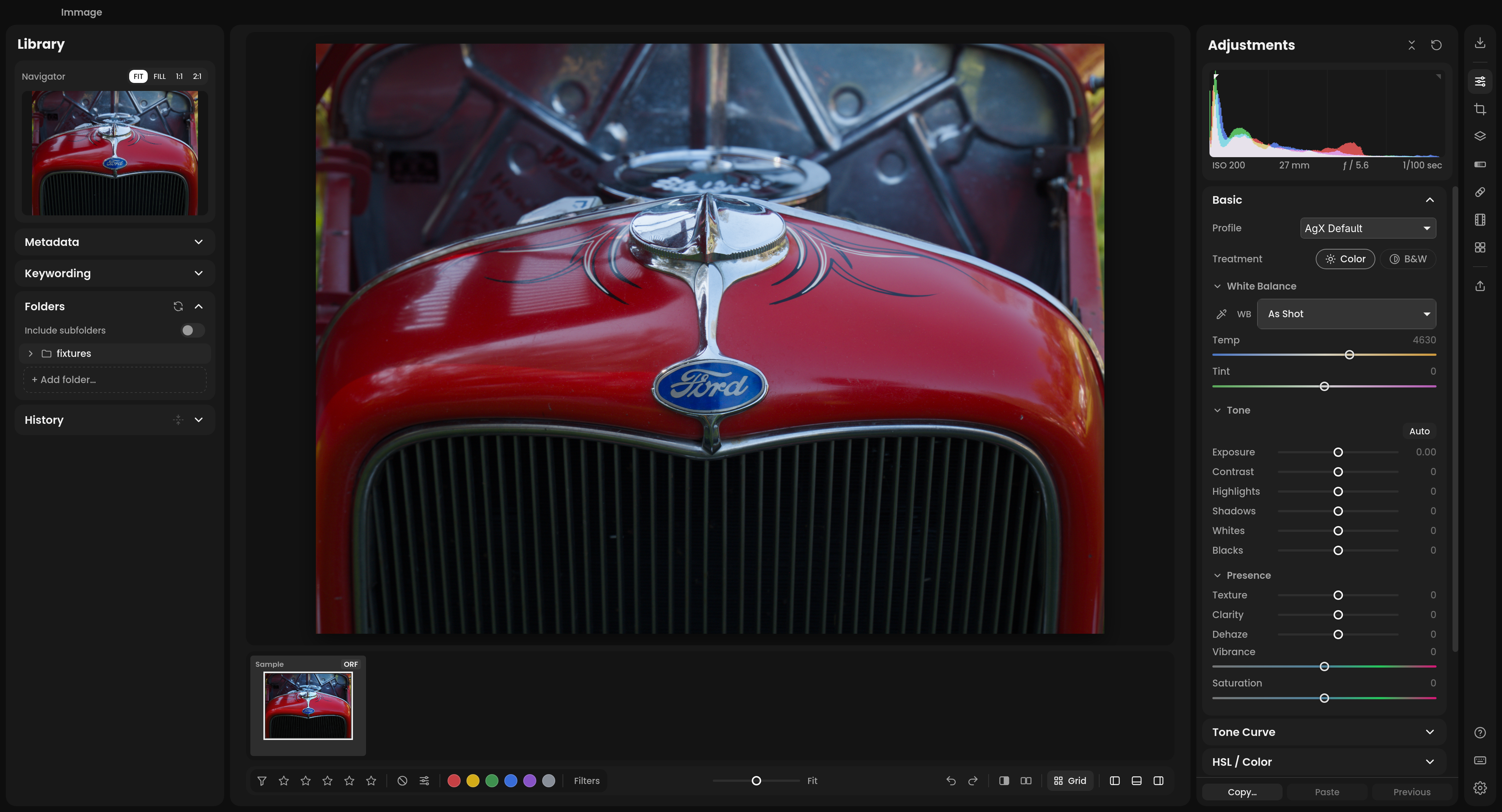
Contents
Start here
- Getting started: first launch, a five-minute walk-through, and familiar terms in Immage
- The workspace: the parts of the window, zooming, before and after, compare, histogram and scopes
Library
- Library: folders, the filmstrip and grid, rating and filtering, virtual copies, metadata and keywords
- Import: copying photos off a card, verified, without duplicates
- Immich: connecting your server, searching it, exporting to albums
Editing
- Adjustments: Basic, Tone Curve, HSL / Color, B&W Mix, Color Grading, Detail, Lens Corrections, Transform and Effects
- Crop: crop, straighten, rotate and flip
- Masks: AI selections, brushes, gradients and ranges, and the adjustments inside them
- Heal and clone: removing spots and distractions
- Film negatives: converting a photo of a film negative, color or black and white, and a whole roll from one frame
- HDR Merge and Panorama Merge: bracketed or overlapping raws into one new DNG
- AI Denoise: a raw denoised into a new DNG
- Zone System: see a black and white photo’s tones as zones 0-X, place them where you want them, and fine-tune any band of tones
- Presets and looks: presets with live previews, and 53 film looks
- History, undo and copying settings: undo, the History card, and copying an edit to other photos
Sharing
- Export: to a folder or an Immich album, with file names, borders and captions
- Edit In: sending photos to DxO PureRAW or Macro Studio and back
Reference
- Preferences: every setting
- Keyboard shortcuts
Working on Immage’s code? See the developer docs.
Reporting an interface problem
An application screenshot can show clipped labels, overlapping controls or a slider that looks wrong. Include the app version, operating system and display scale, and describe the control you moved and what you expected to see. Developers can also run a visible-app smoke check against a copied sample photo; it checks Exposure dragging and reset without using your photo library.
About this guide
This is a first pass, written from the app’s own labels and hints.
Screenshots. Each page marks where a screenshot belongs, with a note
in the page source saying what to capture. Until the file is in images/,
it shows as a missing image. To list the ones still to take:
python3 -I app/docs/check_images.pyTo check in the app. Things this pass describes from the code and has not yet confirmed by hand:
- Dropping a photo on Immage’s Dock icon, and whether Immage appears in Finder’s Open With menu (Library).
- The menu path to API keys in Immich’s web page (Immich).
- How long AI features take on your machine: the guide quotes the app’s own estimates.
- The quick start guide says “1 to 5 rate it”; the shortcut sheet and this guide say 0-5, as 0 clears a rating.
Windows and Linux: the guide shows Mac keys. Use Ctrl for ⌘, Alt for ⌥.
This page is part of immage's own docs, at v0.41.1. View the source on GitHub.